Singaporean shoppers expect fast, secure, and convenient checkout experiences. If your store only supports credit cards, you may be losing customers who prefer direct bank transfers.
This is where PayNow integration becomes essential.
When you integrate PayNow to Shopify, you enable customers to complete payments instantly using their mobile banking apps. This reduces friction, improves conversions, and ensures faster cash flow for your business.
However, Shopify does not offer PayNow as a built-in payment option. You must connect it through trusted third-party payment gateways.
This guide explains everything you need to know from setup to optimisation so you can successfully integrate PayNow to Shopify and improve your checkout experience.
Understanding the Importance of Local Payment Methods
eCommerce is not just about having great products; it is about the checkout experience. When a customer reaches the payment page, they look for familiarity. In Singapore, PayNow is ubiquitous. It is used for everything from hawker center meals to high-ticket corporate expenses.
By offering this option, you signal to your customers that you are a local, trusted business. You also remove friction. Customers do not need to dig out their credit cards or remember CVV numbers. They simply scan a QR code with their banking app.
To process these transactions effectively, you rely on payment gateways to move money safely from the customer’s bank to your business account. Selecting a gateway that supports PayNow is the first step in this process.
The Mechanism Behind the Transaction
When a customer selects PayNow on your Shopify store, the following process occurs:
- Selection: The customer chooses PayNow at checkout.
- Generation: The system generates a unique dynamic QR code based on the order value.
- Scanning: The customer scans this code using their preferred banking app (DBS, OCBC, UOB, etc.).
- Confirmation: The payment is authenticated, and funds move instantly.
- Notification: Your Shopify store receives a “Paid” status update automatically.
Why You Should Integrate PayNow to Shopify?
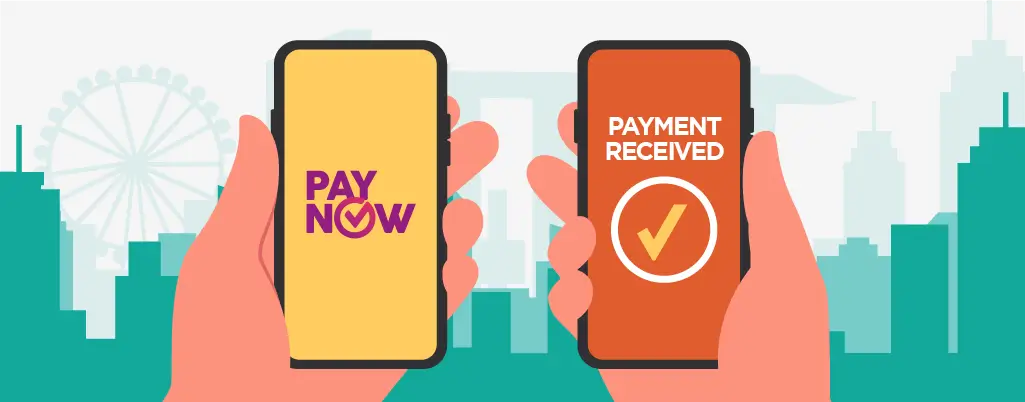
Before we look at the technical steps, it is important to understand the business case. Why go through the effort of adding another payment method?
Local Payment Preference
PayNow is widely used across Singapore for:
- Everyday purchases
- Peer-to-peer transfers
- Business payments
Offering PayNow helps your store feel local, familiar, and trustworthy.
Reduced Transaction Costs
Credit card processors typically charge between 2.9% and 3.4% plus a fixed fee per transaction. PayNow providers often charge significantly less. PayNow transaction fees Shopify merchants encounter are usually around 0.9% to 1% per transaction, depending on the provider you choose. Over thousands of transactions, this difference saves you a substantial amount of money.
Immediate Cash Flow
Credit card payments can take days to settle into your bank account. PayNow transactions are often settled the next day or even instantly, depending on your gateway provider. This improves your liquidity and helps you manage inventory restocking more efficiently.
Zero Chargebacks
Chargebacks are a major pain point for online retailers. A customer might claim they never authorised a credit card transaction, leading to lost revenue and penalties. PayNow acts as a direct bank transfer. Once the money is sent, it is extremely difficult for a customer to reverse it without a valid dispute process. This protects your business from friendly fraud.
Mobile-First Optimisation
Singapore has a very high mobile commerce penetration rate. PayNow is designed for mobile screens. The transition from a mobile browser to a banking app is smooth, reducing cart abandonment rates that occur when users have to type in credit card numbers on a small screen.
How PayNow Works on Shopify?
When you integrate PayNow to Shopify, the checkout flow becomes simple:
- Customer selects PayNow
- A dynamic QR code is generated
- Customer scans via banking app (DBS, OCBC, UOB)
- Payment is completed instantly
- Shopify automatically updates order status to “Paid”
This creates a fast, frictionless checkout experience.
Requirements Before You Integrate PayNow to Shopify
You cannot simply switch on PayNow in Shopify settings. You need to prepare a few items first. Ensure you have the following ready:
- ACRA Registration: You must be a registered business in Singapore.
- Corporate Bank Account: You need a bank account linked to your business to receive funds.
- UEN (Unique Entity Number): This is required to register for corporate PayNow.
- Shopify Admin Access: You need full permissions to install apps and change payment settings.
You need to compare features to choose the right payment gateway that fits your business model. For PayNow on Shopify, the most common and reliable provider is HitPay, though others like Rapyd or FOMO Pay also exist. For this guide, we will focus on HitPay as it is the most widely adopted solution for this specific integration.
Best Payment Gateways to Integrate PayNow to Shopify
To integrate PayNow to Shopify, you need a gateway that supports it.
Popular options include:
- HitPay (most widely used for Shopify)
- Rapyd
- FOMO Pay
HitPay is commonly preferred due to its ease of setup, local focus, and Shopify compatibility.
Step-by-Step Guide to Integrate PayNow via HitPay
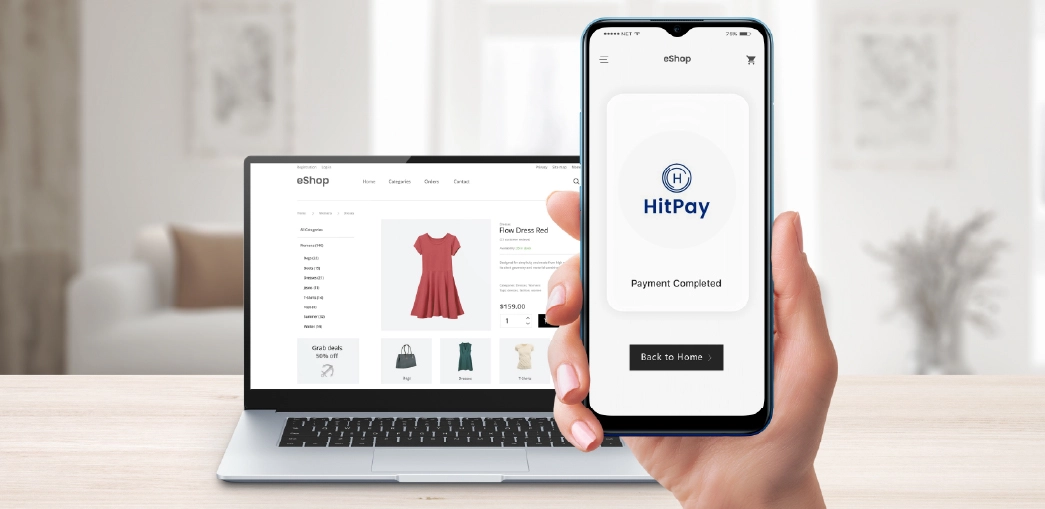
HitPay is a payment platform specifically built for small businesses in Singapore. It acts as the connector between PayNow and Shopify.
Phase 1: Creating Your HitPay Account
- Visit the Website: Go to the HitPay website and click on “Sign Up”.
- Business Details: Enter your email and create a password. You will need to verify your email address.
- Onboarding: Fill in your business information. This includes your ACRA details and UEN.
- Verification: You must upload documents to verify your identity and business legitimacy. This is a standard requirement for all secure digital payment gateways to prevent money laundering.
- Connect Bank: Link your corporate bank account. This is where your payouts will be deposited.
- Enable PayNow: In the HitPay dashboard, navigate to “Payment Methods” and toggle the switch for “PayNow” to the ON position.
Phase 2: Installing the HitPay App on Shopify
Once your HitPay account is active and verified, you can connect it to your store.
- Log in to Shopify: Open your Shopify Admin dashboard.
- Visit the App Store: Click on “Apps” in the left sidebar and search for “HitPay Payment Gateway app”.
- Install: Click “Add app”. You will be redirected to a permission page.
- Authorise: Click “Install app” to grant HitPay permission to process payments for your store.
Phase 3: Activating the Payment Method
After installation, you need to configure the settings within Shopify to make the option visible to customers.
- Go to Settings: In your Shopify Admin, click “Settings” at the bottom left.
- Payments: Select the “Payments” tab.
- Supported Payment Methods: You should see HitPay listed under “Alternative Payment Providers” or “Third-party providers”. If not, click “Choose alternative payment” and search for HitPay.
- Account Connection: Click on the HitPay listing. You will be asked to log in to your HitPay account to link the two systems.
- Configuration:
- Ensure “Enable Test Mode” is unchecked if you are ready to go live.
- Check the icons for the payment methods you want to display (e.g., PayNow icon).
- Activate: Click the green “Activate HitPay” button.
Phase 4: Customising the Checkout Experience
You want the checkout process to be clear for your customers.
- Instructions: In the HitPay dashboard, you can sometimes customise the instructions shown to the customer.
- Return URL: Ensure the “Return URL” settings are correct so that after a customer pays, they are redirected back to your Shopify “Thank You” page. This triggers the order confirmation email.
Detailed Breakdown of Fees and Costs
Understanding the cost structure is vital for your margins. While specific rates change, here is the general structure you can expect when you use PayNow via a third-party provider on Shopify.
Transaction Fees
As mentioned earlier, PayNow transaction fees Shopify merchants pay are generally lower than credit cards.
- Standard Rate: Expect to pay between 0.9% and 1% per transaction.
- Minimum Fee: Some providers have a minimum fee (e.g., S$0.50) per transaction, though this is rare for PayNow.
Shopify Transaction Fees
If you do not use Shopify Payments (Shopify’s own processor), Shopify charges an additional transaction fee for using third-party gateways.
- Basic Shopify Plan: 2.0%
- Shopify Plan: 1.0%
- Advanced Shopify Plan: 0.5%
You must calculate the combined cost. For example, if HitPay charges 0.9% and you are on the Basic Shopify plan (2.0%), your total cost per transaction is 2.9%. This is still competitive compared to credit card processing which could total 5% or more when combined with Shopify’s fees.
Subscription Fees
Most PayNow gateway providers do not charge a monthly subscription fee. They operate on a pay-per-transaction model. However, always check the pricing page of your chosen provider to ensure there are no hidden setup or maintenance costs.
Testing Your PayNow Integration
Never launch a new payment method without testing it first. If the payment fails, the customer will likely abandon the cart and never return.
How to Perform a Test Transaction
- Create a Low-Value Product: Create a hidden product in Shopify priced at S$1.00.
- Open Incognito Mode: Visit your store as a customer would.
- Add to Cart: Add the test product and proceed to checkout.
- Select PayNow: Choose the PayNow option at the payment screen.
- Scan the Code: Use your personal banking app to scan the QR code.
- Verify Deduction: Check your personal bank account to see if the money left.
- Verify Order Status:
- Shopify Admin: The order should appear as “Paid” (not “Pending”).
- Gateway Dashboard: Log in to HitPay (or your chosen provider) and confirm the transaction is recorded there.
- Refund: Process a refund through the gateway dashboard to test the reverse flow. Note that some gateways allow refunds directly from Shopify, while others require you to do it on their platform.
Troubleshooting Common Issues
Even with a smooth setup, issues can arise. Here are the most frequent problems and how to fix them.
Order Status Remains “Pending”
This is the most common issue. The customer pays, but Shopify does not update.
- Cause: Communication failure between the gateway and Shopify (Webhook failure).
- Solution: Check your gateway settings. Ensure the “Webhook URL” is correctly pasted from Shopify to your gateway provider. Also, instruct customers not to close the browser window immediately after payment; they must wait to be redirected.
QR Code Does Not Generate
- Cause: Browser pop-up blockers or API limits.
- Solution: Ensure your gateway account is fully verified. If your account is still under review by the provider (KYC process), live payments will not work.
“Payment Method Not Available” Error
- Cause: Currency mismatch.
- Solution: PayNow only works with Singapore Dollars (SGD). If your store supports multiple currencies and the customer tries to check out in USD, PayNow will not appear. You must ensure your store currency is set to SGD or use a currency converter that switches to SGD at checkout.
Security and Compliance

Security is non-negotiable in eCommerce. Using secure digital payment gateways ensures that you never touch the customer’s sensitive banking data.
Data Protection
When using a provider like HitPay or Rapyd, the transaction happens on their encrypted servers or via a secure redirect. Your Shopify database never sees bank login details. This reduces your PCI compliance burden significantly.
Fraud Prevention
While PayNow is secure, you should still monitor for suspicious activity. Ensure your gateway provider offers fraud detection tools. Watch out for unusually large orders from new customers, even if paid via PayNow.
Maximising Sales Through Localised Payment Options
Integrating PayNow into your Shopify store is more than just a technical update; it is a commitment to serving your local market effectively. By removing barriers to entry and offering a payment method that millions of Singaporeans trust and use daily, you directly influence your conversion rates.
The process requires attention to detail from verifying your business documents to testing the final checkout flow but the rewards are clear. You gain lower transaction fees, faster settlements, and a smoother customer experience. Do not let technical hesitation hold your business back. Follow the steps outlined above, secure your gateway, and give your customers the convenience they expect.
Need help with setup? Get in touch with our team and we’ll handle the integration for you, fast and hassle-free.
Editor’s note: This article was originally published on 07 February 2024 and has been updated on 27 March 2026 to reflect the latest information and best practices.
Need a strong team specialised in SEO?
Speak to Verz today if you are looking to create a website with a
lasting impression to achieve online success.



 Share
Share